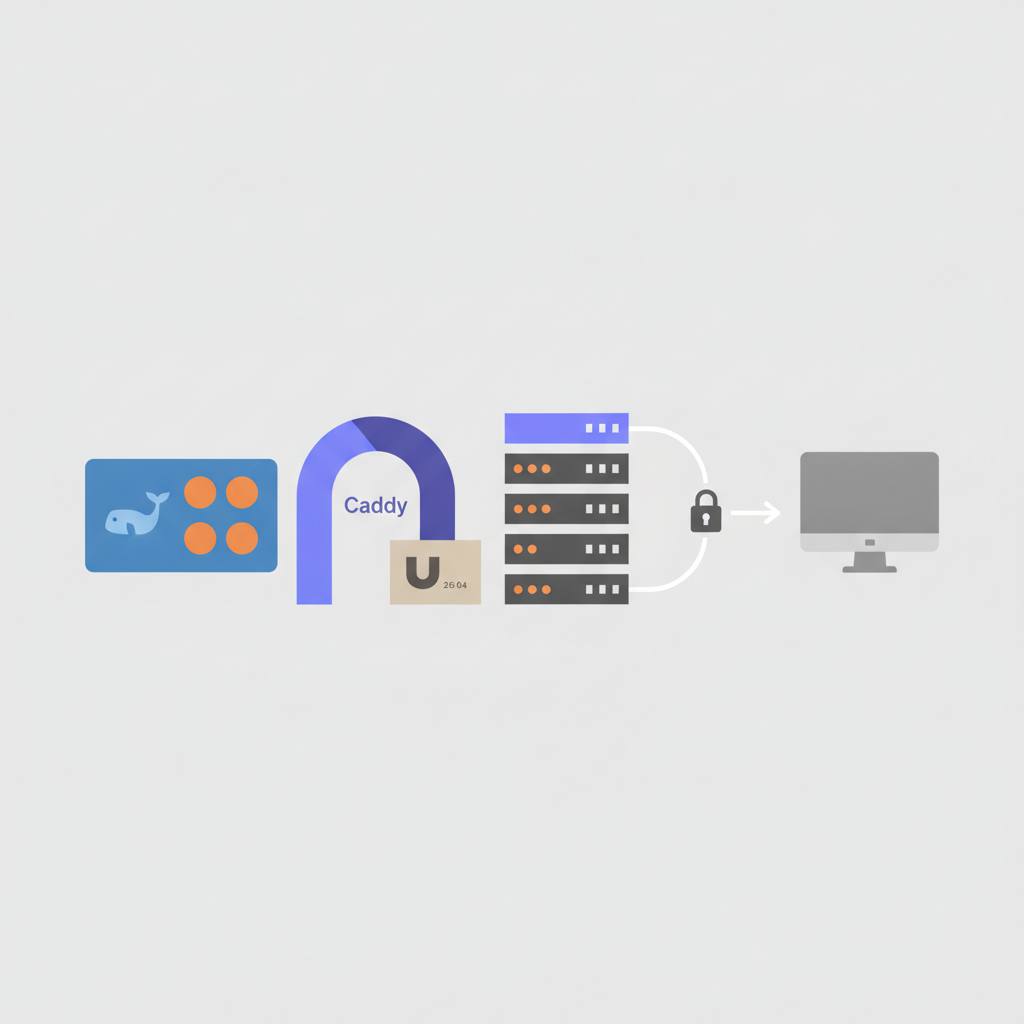
Say goodbye to random ports and manual HTTPS for your Docker containers! Caddy, combined with Docker Compose on Ubuntu 26.04, automates reverse proxying and free SSL certificates, making your applications accessible via clean domain names like plex.example.com.
If you're managing Docker containers, chances are you've run into the headache of dealing with random port numbers and the frustrating lack of HTTPS for your apps. The great news is that using Caddy with Docker Compose on Ubuntu 26.04 incredibly simplifies this challenge. For you, this means saying goodbye to setting up Plex on port 32400 or a dashboard on 9000, and more importantly, getting rid of the hassle of manually securing them with HTTPS certificates. You can now have clean, secure domain names like plex.example.com or books.example.com, all with real, automatically managed security certificates. The big hero here is Caddy; it's a dependable and straightforward solution. All it takes is a single line in your Caddyfile for Caddy to automatically get a Let's Encrypt certificate, serve it on port 443, and renew it forever without any input from you. You'll no longer need to manually craft complex Nginx configurations or run Certbot on a cron job. The core idea behind this setup is simple: Caddy and your applications must share the same Docker network. This allows Caddy to reach your containers by their internal names directly, rather than needing to expose every port on your host machine. For example, if you have an app named 'whoami' on the shared network, Caddy can refer to it directly as 'whoami' in its configuration. This means your application containers don't need to publish any ports to the host at all, which greatly simplifies things and enhances security. To implement this, you'll run Caddy within the same Compose project as your applications. Make sure all your containers are on a single, shared Docker network. In your Caddyfile, use the reverse_proxy directive to point to the container name and its internal port, never 'localhost'. Caddy will automatically enable HTTPS as long as your domain's DNS record points to your server's IP address and ports 80 and 443 are reachable from the internet. Before you start, ensure you have Ubuntu 26.04 with Docker and the Compose plugin installed. You'll also need a domain you control, with an A record (and AAAA if you have IPv6) pointing to your box's public IP. And don't forget to confirm that ports 80 and 443 are accessible from the internet; you might need to open them in UFW and forward them at your router if you're behind NAT. While testing, it's wise to set acme_ca to the Let's Encrypt staging endpoint to avoid exhausting your weekly certificate quota if your configuration has errors. This setup ensures easy access and data security with minimal effort.