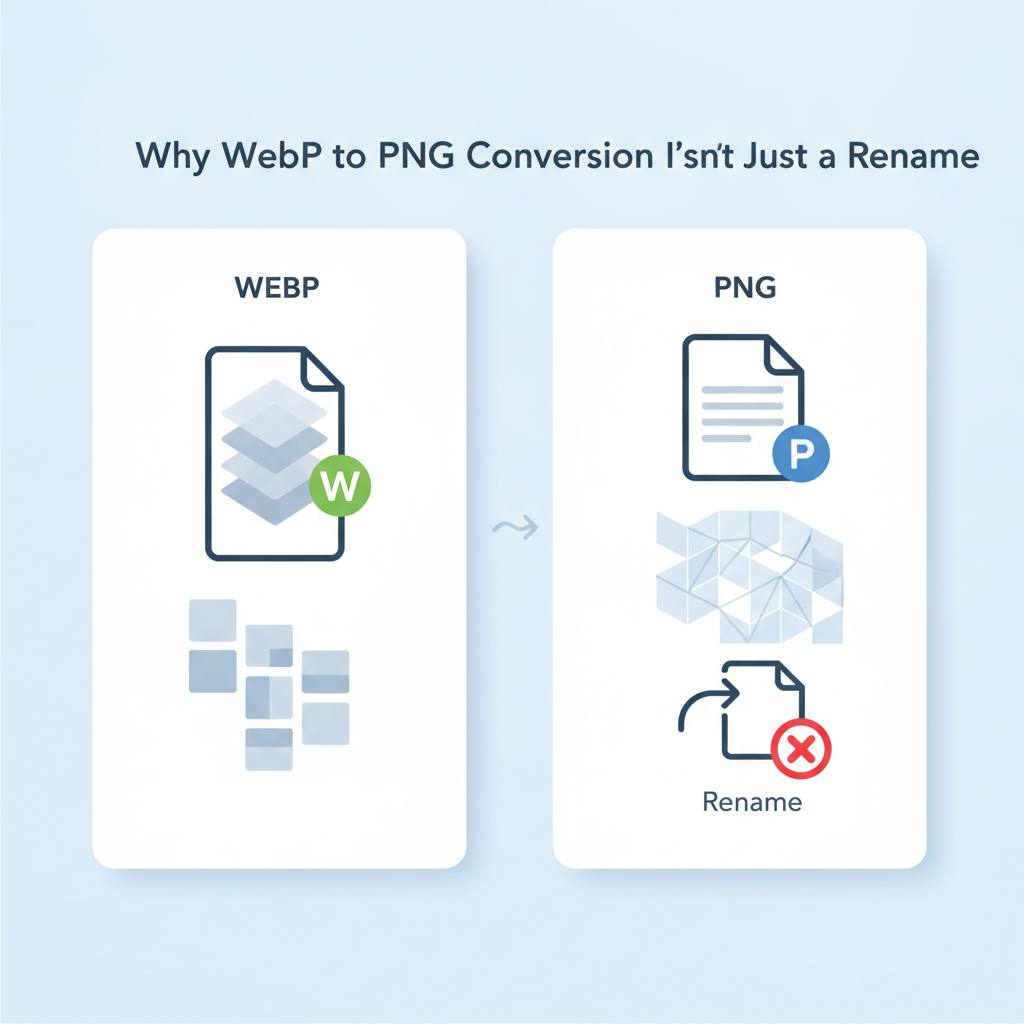
A new client-side WebP to PNG converter highlights that proper image conversion is a three-step process: decode to pixels, draw to a canvas, and then encode to the new format, which is key to avoiding issues with file compatibility.
Have you ever downloaded a logo as a WebP file, only to find your favorite old photo editor refusing to open it? You might even try renaming it to '.png', hoping for a quick fix. But as one tech blogger recently learned, renaming a file is definitely not converting it. This common annoyance turned into a weekend project, resulting in a handy client-side WebP to PNG converter that reveals some crucial lessons about image file conversion.
What does this mean for you? If you're tired of compatibility issues with WebP images, understanding the true nature of conversion can empower you. The big secret is that converting a WebP to PNG isn't just some 'extra steps' after a rename. Instead, it involves a smart three-step process right inside your browser: first, the WebP image is decoded into its raw pixels. Second, those pixels are carefully drawn onto a temporary digital canvas. Finally, the image on that canvas is encoded into your desired format, like PNG or JPG. This middle step – where the image exists as pure pixels – is the critical part, as it's the 'truth' of the image.
This ingenious approach means the converter runs entirely in your browser, ensuring your images are never uploaded to a server, keeping your data private and secure. It’s a great example of how simple tools can solve irritating problems. The developer shared five key lessons from building this tool, emphasizing that the decoded pixels are what truly matter. Deciding whether to save as PNG (lossless, keeps transparency) or JPG (lossy, no transparency) comes after this pixel decoding. If you skip thinking about this crucial middle step, you might end up blaming the wrong part of the process when your converted image doesn't look quite right.
So, next time you need to convert a WebP file, remember it’s not magic, but a methodical process: decode, draw, then encode. And don't expect a lossy WebP to suddenly look better when converted to PNG; PNG preserves what's there, it doesn't invent new quality. This tool, found at toolkitloop.com/webp-to-png, offers a practical solution to a common digital dilemma.
What does this mean for you? If you're tired of compatibility issues with WebP images, understanding the true nature of conversion can empower you. The big secret is that converting a WebP to PNG isn't just some 'extra steps' after a rename. Instead, it involves a smart three-step process right inside your browser: first, the WebP image is decoded into its raw pixels. Second, those pixels are carefully drawn onto a temporary digital canvas. Finally, the image on that canvas is encoded into your desired format, like PNG or JPG. This middle step – where the image exists as pure pixels – is the critical part, as it's the 'truth' of the image.
This ingenious approach means the converter runs entirely in your browser, ensuring your images are never uploaded to a server, keeping your data private and secure. It’s a great example of how simple tools can solve irritating problems. The developer shared five key lessons from building this tool, emphasizing that the decoded pixels are what truly matter. Deciding whether to save as PNG (lossless, keeps transparency) or JPG (lossy, no transparency) comes after this pixel decoding. If you skip thinking about this crucial middle step, you might end up blaming the wrong part of the process when your converted image doesn't look quite right.
So, next time you need to convert a WebP file, remember it’s not magic, but a methodical process: decode, draw, then encode. And don't expect a lossy WebP to suddenly look better when converted to PNG; PNG preserves what's there, it doesn't invent new quality. This tool, found at toolkitloop.com/webp-to-png, offers a practical solution to a common digital dilemma.