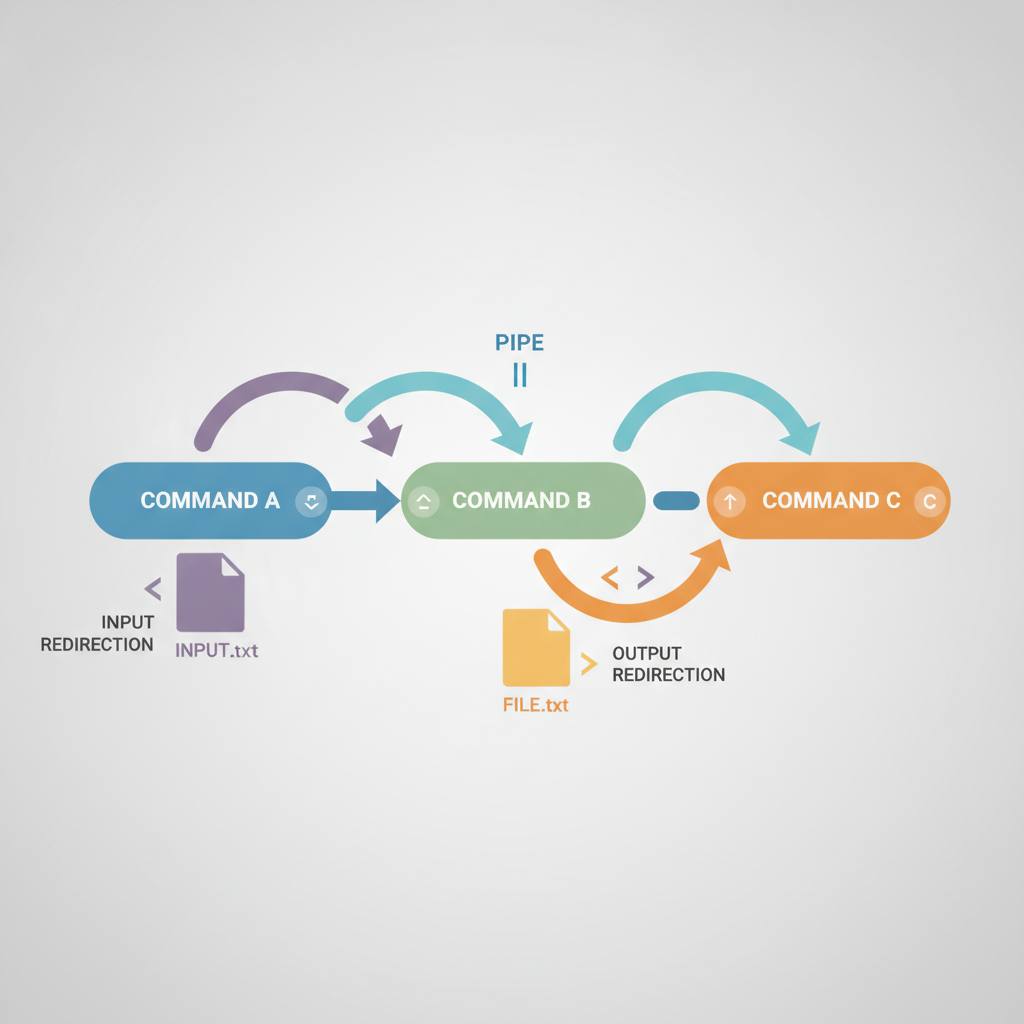
Those cryptic symbols in your command line like > , >> , 2> , and | aren't magic; they are simple ways to control how commands exchange text with files, empowering you to understand and write your own commands with confidence.
Ever copied a shell command that had cryptic symbols like `> , >> , 2> ,` or `|` and wondered how it worked? You're not alone! Many find these «one-liners» confusing, but they're not magic. They're just simple ways to control how commands handle text, and understanding them will let you write your own with confidence.
The secret lies in knowing that every command you run uses three separate «channels» for text:
1. **Standard Input (stdin)**: Where the command reads data, usually from your keyboard.
2. **Standard Output (stdout)**: Where the command sends its normal results, usually to your screen.
3. **Standard Error (stderr)**: Where error messages go, also usually to your screen.
Even though output and errors both appear on your screen, they are distinct channels. This separation is key to redirection and pipes.
**Redirection** changes where a stream points.
* The `>` symbol sends a command's **standard output** to a file instead of the screen. If the file exists, its content is completely replaced. For example, `echo one > out.txt` then `echo two > out.txt` results in `out.txt` only containing "two".
* To add content to the end of an existing file without overwriting it, use `>>`. So, `echo three >> out.txt` would append "three" to `out.txt`, making it contain "two\nthree". This is perfect for log files.
What about errors? That's what `2>` is for.
* Standard error is stream number 2 (stdout is 1, stdin is 0). Since `>` only captures stdout, errors will still appear on your screen.
* To capture error messages, you redirect stream 2 using `2>`. For instance, `ls nope fruits.txt > found.txt 2> errors.txt` will send valid file names to `found.txt` and any `No such file or directory` errors to `errors.txt`, keeping them separate.
Finally, **pipes** (`|`) connect commands. A pipe takes the standard output of the command on its left and feeds it directly as the standard input to the command on its right. This allows you to chain commands together for powerful, concise operations.
Once you grasp these simple ideas – the three streams and how to redirect or pipe them – those complex shell commands suddenly make sense. You'll move beyond just copying and confidently write your own command-line solutions!
The secret lies in knowing that every command you run uses three separate «channels» for text:
1. **Standard Input (stdin)**: Where the command reads data, usually from your keyboard.
2. **Standard Output (stdout)**: Where the command sends its normal results, usually to your screen.
3. **Standard Error (stderr)**: Where error messages go, also usually to your screen.
Even though output and errors both appear on your screen, they are distinct channels. This separation is key to redirection and pipes.
**Redirection** changes where a stream points.
* The `>` symbol sends a command's **standard output** to a file instead of the screen. If the file exists, its content is completely replaced. For example, `echo one > out.txt` then `echo two > out.txt` results in `out.txt` only containing "two".
* To add content to the end of an existing file without overwriting it, use `>>`. So, `echo three >> out.txt` would append "three" to `out.txt`, making it contain "two\nthree". This is perfect for log files.
What about errors? That's what `2>` is for.
* Standard error is stream number 2 (stdout is 1, stdin is 0). Since `>` only captures stdout, errors will still appear on your screen.
* To capture error messages, you redirect stream 2 using `2>`. For instance, `ls nope fruits.txt > found.txt 2> errors.txt` will send valid file names to `found.txt` and any `No such file or directory` errors to `errors.txt`, keeping them separate.
Finally, **pipes** (`|`) connect commands. A pipe takes the standard output of the command on its left and feeds it directly as the standard input to the command on its right. This allows you to chain commands together for powerful, concise operations.
Once you grasp these simple ideas – the three streams and how to redirect or pipe them – those complex shell commands suddenly make sense. You'll move beyond just copying and confidently write your own command-line solutions!