Having trouble connecting to your GBase 8s database after installing it? Before you reinstall, check these five common issues like incorrect configurations or firewall problems, as they're often the culprits.
Hey WondTech friends, have you just finished installing your GBase 8s database only to find you can't connect to it? Pretty frustrating, right? Before you even think about reinstalling everything from scratch (and we all know how time-consuming that can be), hold on a moment. The issue is often much simpler than you imagine, and there are five common reasons that might be causing this headache.
What this means for you is that you don't need to start over. Instead, you can save a lot of effort and time by checking a few key points. If you can connect locally but remote connections fail, that's a big clue that something is blocking external access.
The first common cause is an incorrect 'sqlhosts' file configuration. This file acts as your database server's connection map, defining its server name, connection protocol, host, and port. A common mistake here is using 'localhost' or '127.0.0.1' instead of your server's actual IP address. Make sure the address listed in 'sqlhosts' is the real network address, and that it's reachable from your client machines. Also, confirm that the server is listening on the expected interface and port.
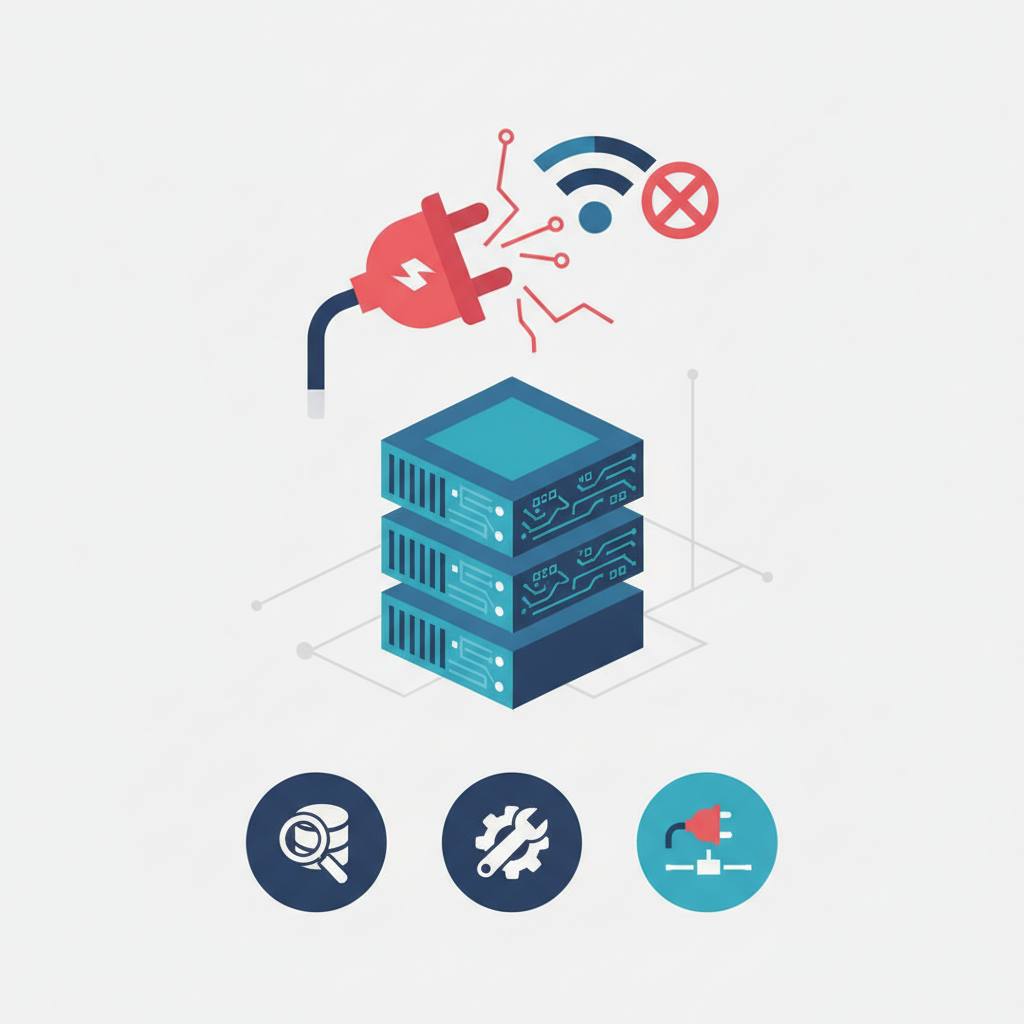
The second and perhaps most frequent culprit is the firewall. Your database might be running perfectly, but your operating system firewall, network firewall, or even cloud security rules could be blocking the database's listener port. The result? Remote connections time out. Don't just disable your firewall as a quick fix; instead, check its status and ensure the necessary port is open for the correct source addresses.
Finally, you might be dealing with port conflicts. If your GBase 8s instance fails to start correctly, or the expected database port is unavailable, it often means another service is already using that specific port. This prevents GBase 8s from listening on the port required for connections.
Remember, avoid changing configurations or restarting your database until you've identified the root cause. These simple checks can save you hours of frustration and get your database back online quickly.
What this means for you is that you don't need to start over. Instead, you can save a lot of effort and time by checking a few key points. If you can connect locally but remote connections fail, that's a big clue that something is blocking external access.
The first common cause is an incorrect 'sqlhosts' file configuration. This file acts as your database server's connection map, defining its server name, connection protocol, host, and port. A common mistake here is using 'localhost' or '127.0.0.1' instead of your server's actual IP address. Make sure the address listed in 'sqlhosts' is the real network address, and that it's reachable from your client machines. Also, confirm that the server is listening on the expected interface and port.
The second and perhaps most frequent culprit is the firewall. Your database might be running perfectly, but your operating system firewall, network firewall, or even cloud security rules could be blocking the database's listener port. The result? Remote connections time out. Don't just disable your firewall as a quick fix; instead, check its status and ensure the necessary port is open for the correct source addresses.
Finally, you might be dealing with port conflicts. If your GBase 8s instance fails to start correctly, or the expected database port is unavailable, it often means another service is already using that specific port. This prevents GBase 8s from listening on the port required for connections.
Remember, avoid changing configurations or restarting your database until you've identified the root cause. These simple checks can save you hours of frustration and get your database back online quickly.