Imagine your software tests pass with flying colors, but real users can't even see half the page! We dive into a recent incident where automated tests successfully interacted with a button that was completely inaccessible to human users.
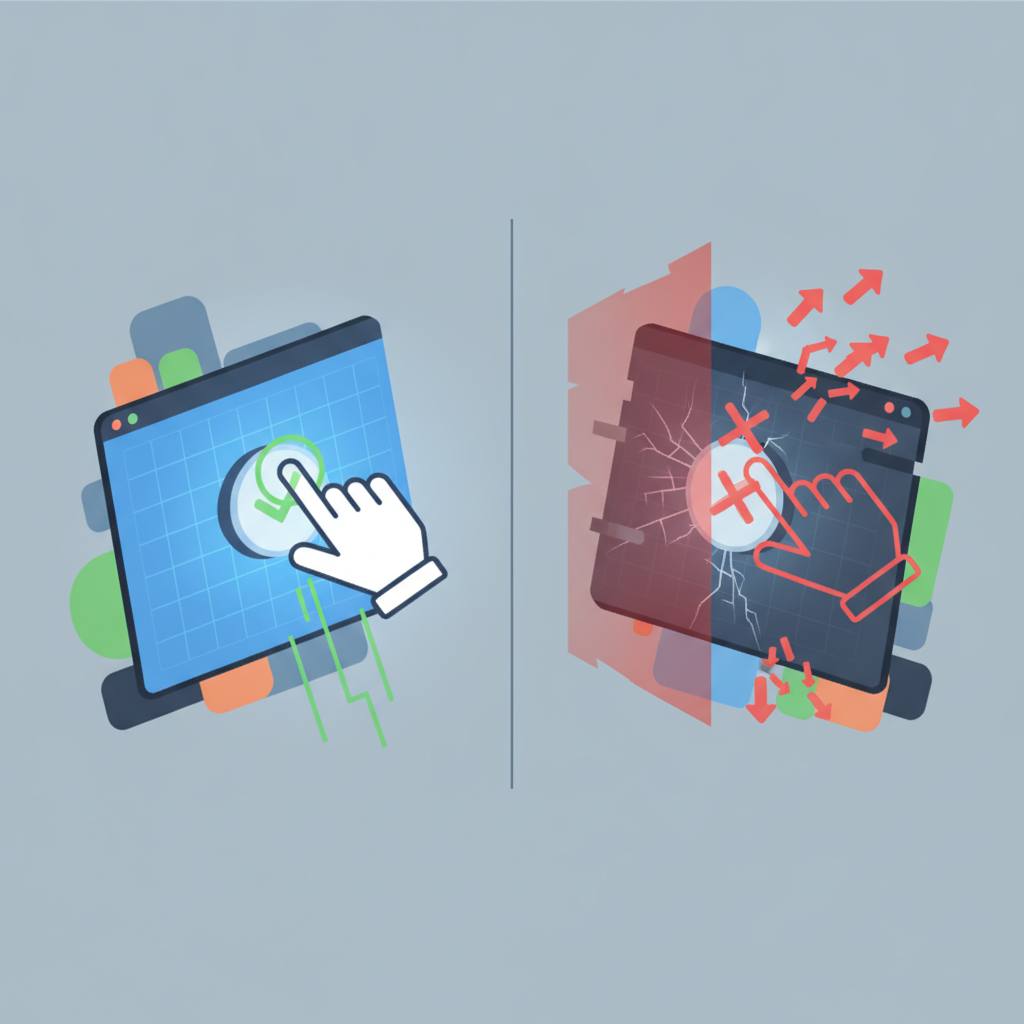
Have you ever seen your automated tests pass, yet your users report a broken experience? This is a common pitfall that means your tests aren't truly reflecting real user interaction. We recently ran into a head-scratcher with a new blog editor we added to our dashboard. Developers were thrilled: our end-to-end tests for the editor were all green, confirming everything from filling out the form to publishing a post. But then a user—one of us, actually—opened it up and found a huge problem: the bottom half of the form, including the important 'Add question' button and publish options, was completely gone! It was clipped off the screen, and no amount of scrolling with the mouse wheel or keyboard could bring it back. The test clicked a button that no human could even see.
So, how did this happen, and what does it mean for you as a developer or user? Our dashboard has a special 'mail view' mode, designed to perfectly fit the screen without any outer scrolling. It achieves this with a simple CSS rule: `overflow: hidden`. Most pages render in a normal, scrollable container, but new pages like our blog editor need to be specifically excluded from this full-screen mail mode. In our rush, we added the new blog editor but forgot to add it to this exclusion list. The result? The editor opened in the `overflow: hidden` mail mode, and since its content was taller than the screen, the bottom part was simply clipped away, making it inaccessible to human users.
The real puzzle was why our tests didn't catch this. The crucial insight is that `overflow: hidden` doesn't mean a programmatic script can't 'scroll' or interact with hidden elements. While it hides scrollbars and ignores user input like mouse wheels, the browser still maintains the element's internal scroll position (`scrollTop`). Our automated test was essentially able to bypass the visual clipping by directly manipulating the elements, finding and clicking the 'Add question' button even though it wasn't visible on screen.
The fix was incredibly simple: two words, `&& !blog`, added to the condition that decides if a page uses the `overflow: hidden` mail mode. This tiny change ensures the blog editor now opens in a proper scrolling container. The lesson here is clear: automated tests are powerful, but they need to truly simulate user behavior, including visual checks and user-driven scrolling, to catch issues like these. Just because a test can programmatically interact with an element doesn't mean a human user can.
So, how did this happen, and what does it mean for you as a developer or user? Our dashboard has a special 'mail view' mode, designed to perfectly fit the screen without any outer scrolling. It achieves this with a simple CSS rule: `overflow: hidden`. Most pages render in a normal, scrollable container, but new pages like our blog editor need to be specifically excluded from this full-screen mail mode. In our rush, we added the new blog editor but forgot to add it to this exclusion list. The result? The editor opened in the `overflow: hidden` mail mode, and since its content was taller than the screen, the bottom part was simply clipped away, making it inaccessible to human users.
The real puzzle was why our tests didn't catch this. The crucial insight is that `overflow: hidden` doesn't mean a programmatic script can't 'scroll' or interact with hidden elements. While it hides scrollbars and ignores user input like mouse wheels, the browser still maintains the element's internal scroll position (`scrollTop`). Our automated test was essentially able to bypass the visual clipping by directly manipulating the elements, finding and clicking the 'Add question' button even though it wasn't visible on screen.
The fix was incredibly simple: two words, `&& !blog`, added to the condition that decides if a page uses the `overflow: hidden` mail mode. This tiny change ensures the blog editor now opens in a proper scrolling container. The lesson here is clear: automated tests are powerful, but they need to truly simulate user behavior, including visual checks and user-driven scrolling, to catch issues like these. Just because a test can programmatically interact with an element doesn't mean a human user can.